VS Code extension
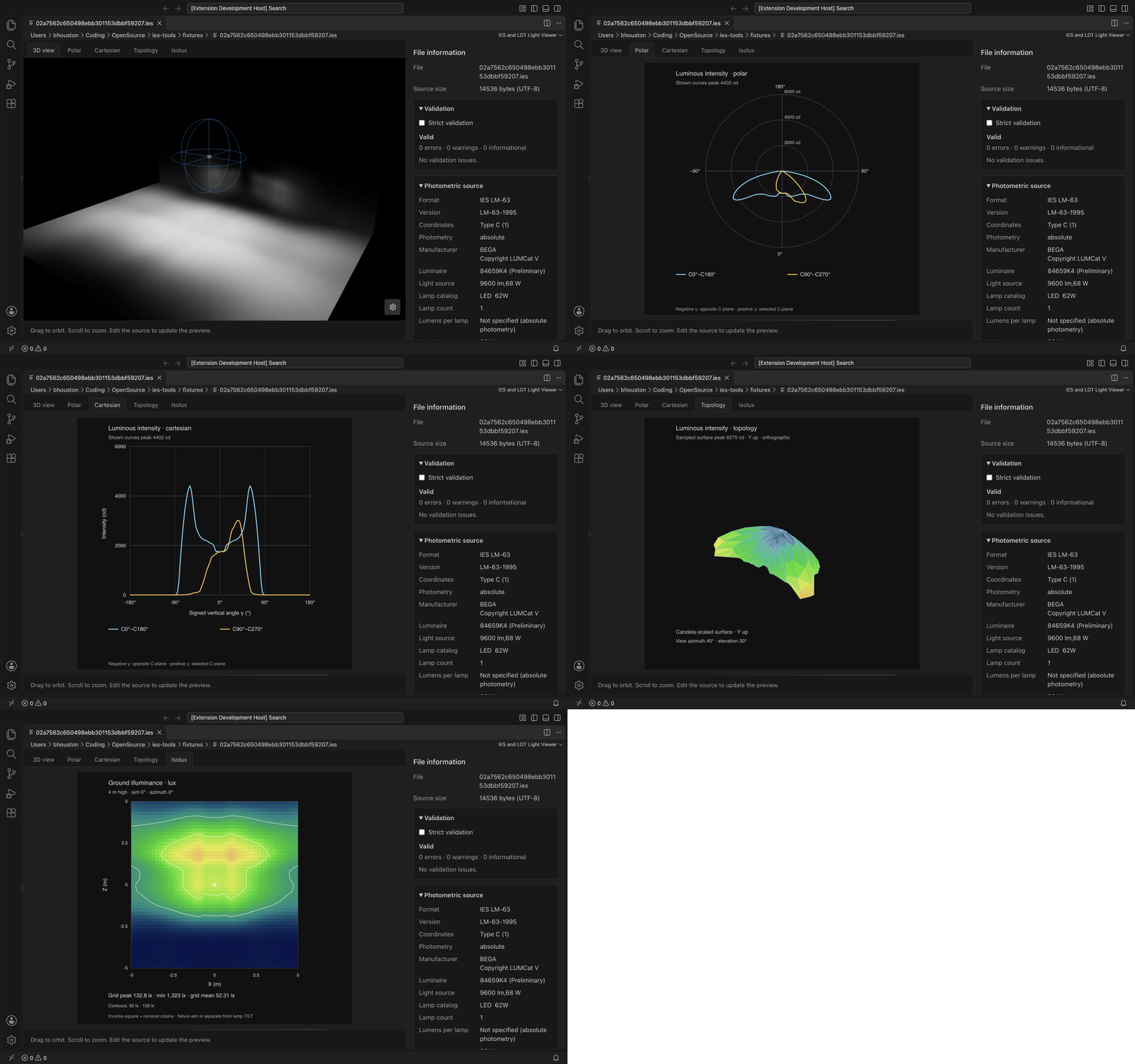
Build and package from the workspace:
pnpm install
pnpm build
pnpm --filter ies-vscode-extension package
code --install-extension packages/vscode-extension/ies-vscode-extension-0.1.0.vsix
Open an .ies or .ldt file to use the IES and LDT Light Viewer custom editor, or run IES: Open Light Preview. Reopen Editor With → Text Editor lets you edit the source; the preview refreshes with unsaved text changes.
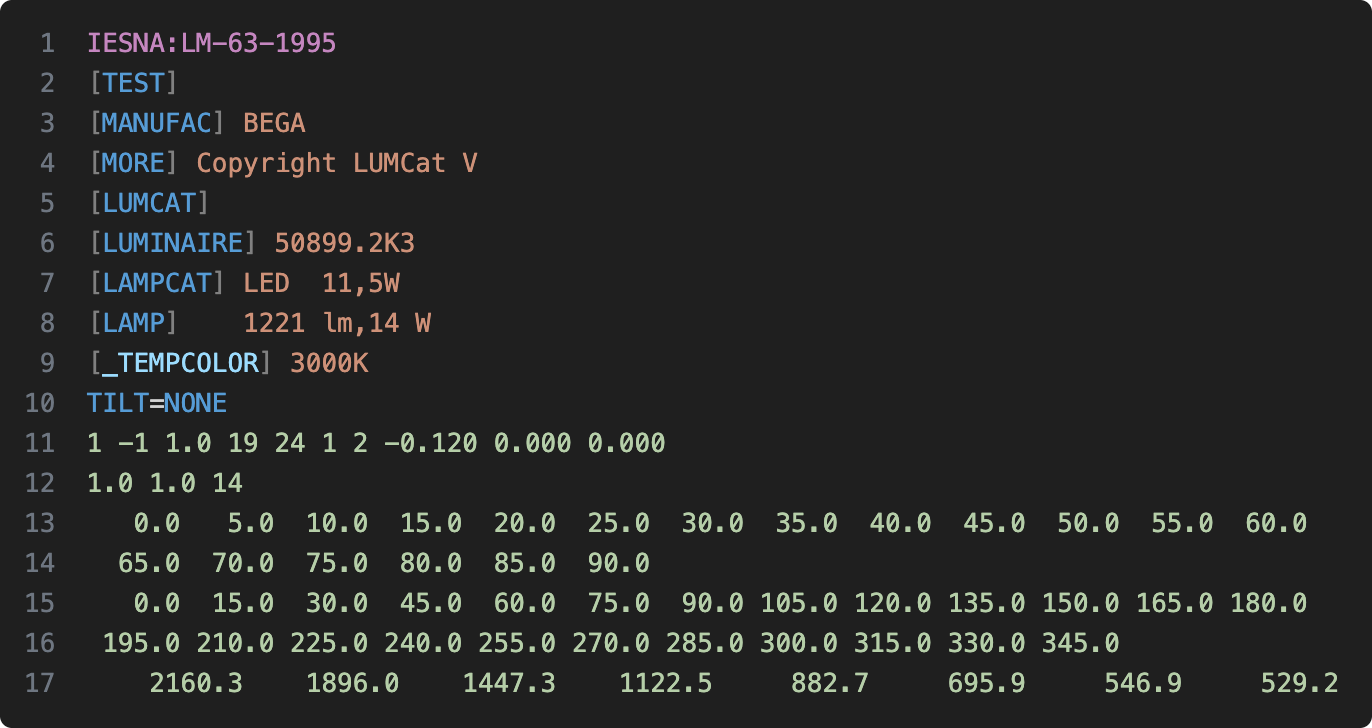
The text editor highlights both formats. IES files use the IES Photometric (LM-63) language mode, which colors the format line, [KEYWORD] tags and values, user [_KEYWORDS], [MORE] continuations, TILT= lines and numbers:
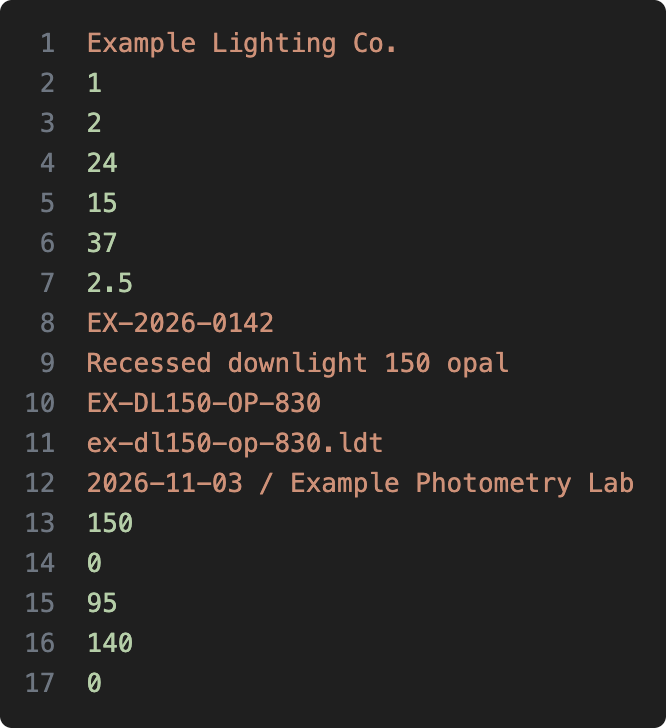
LDT files use the EULUMDAT (LDT) mode, which distinguishes numeric lines from text lines:
Use Open as Text in the preview's title bar and Open Light Preview in the text editor's title bar to switch views.
The preview reuses the shared Three.js <light-viewer> element, with a floor, wall and black background, plus tabs for polar, Cartesian, topology, isolux, cone, luminance and intensity-table charts. Its script is bundled into the extension, with no CDN or authentication dependency. File text is sent through the webview message protocol rather than interpolated into HTML. The webview uses a content security policy and restricts local resources to its media directory.
If a file cannot be parsed, the preview displays an error. Rendering requires hardware WebGL2 and Type C photometry. An invalid file remains editable in VS Code's text editor.
Marketplace and Open VSX publication run through the manual Release workflow after the publisher credentials are configured; see RELEASING.md in the repository.
EULUMDAT files with multiple alternative lamp configurations show a configuration selector above the preview. Choose a configuration explicitly; configurations are never summed and the first is not selected automatically. Single-configuration files display directly. Changing the file's source text refreshes its configuration labels; an out-of-range prior selection is cleared.
File text, format hints and configuration labels travel as validated structured messages. Labels are assigned through textContent, so manufacturer or lamp descriptions cannot become HTML or scripts. Source loading uses the shared parser and in-memory profile, with no intermediate IES serialization.
Text editor language features
In the text editor, the extension reports diagnostics through one ies-tools diagnostic collection, so each error or warning is underlined at its source token and listed in the Problems panel with its code. Diagnostics refresh 250 ms after an edit and clear when the file closes. Hovering a token shows its field name and description from the core field map, the Outline view lists one symbol per header field with repeated arrays collapsed (for example Vertical angles (37)), and a CodeLens on line 0 summarizes integrated flux, peak intensity, C0/C90 beam angles and efficacy next to an Open Light Preview link. Files with errors show the error count instead, linking to the Problems panel.
The features apply to .ies, .IES, .ldt and .LDT files, matched by language ID or file pattern. Parse results are cached per document version. They are read-only and supported in untrusted workspaces. Turn them off with iesTools.validation.enabled, iesTools.hover.enabled and iesTools.codeLens.enabled; iesTools.validation.strict reports warnings as errors. Ranges and descriptions come from describePhotometrySource in @ies-tools/core.
Converting files
The Explorer context menu for .ies and .ldt files has a Convert Photometric File submenu with Convert to IES (LM-63), Convert to EULUMDAT (.ldt) and Convert to JSON; the entry for the file's own format is hidden. Multi-selections convert every selected file. The commands also run from the Command Palette on the active text or light-preview editor, using its unsaved text. Convert Folder… on a folder asks for a target format and whether to include subfolders, skipping dot-folders and node_modules; files already in the target format are skipped.
Conversion uses the same @ies-tools/core serializers as ies convert, so JSON output is the native parsed document and warnings are identical. Output is written next to the source through vscode.workspace.fs, so remote and virtual workspaces work. If the target exists, a modal offers Overwrite, Keep Both (appends (1), (2), …) or Skip. The iesTools.convert.overwrite setting is ask (default), always or never (skip existing targets).
IES output from an LDT file with multiple alternative lamp configurations asks for one configuration in a Quick Pick, using the preview's labels; cancelling skips that file. Every ConversionWarning is written to the IES Tools output channel. A summary notification reports Converted N file(s), M warning(s) with Open (single file) and Show Log actions. Errors are shown per file and do not abort the rest of the batch.
File information and validation
The right-hand panel shares the core inspection/validation model with ies inspect and ies validate. It includes format/version, coordinate type, source and lamp descriptions, power, peak candela, declared and integrated flux, efficacy, downward/upward flux, light output ratios, downward flux fraction, CIE flux code, peak and nadir intensity, collapsible zonal lumens, principal-plane beam/field estimates, angular counts, dimensions, tilt, generation provenance and every metadata keyword. Native LDT alternative configurations remain separate and require a selection for calculated output.
Validation lists codes, severity, fields and messages. Strict validation makes warnings fail validation without changing their original severity. Invalid unsaved edits replace old statistics with the current errors; unsupported 3D coordinates can still be inspected. The layout places the panel to the right on wider webviews and below the preview on narrow ones.
The webview uses React, Tailwind v4 and @ies-tools/viewer's shared theme stylesheet, with theme tokens mapped to VS Code's editor colors. Its scripts and compiled styles ship inside the VSIX and do not need a CDN.